Thanks, I’ll try to get a subscription over there through VPN
I’m pretty sure they still have it in the US aswell
1 Like
If I go to Devices on the remote, pick the Apple TV, there is an icon for Discovery+
So there must be a way
It only means that Discovery+ App is installed. It does not mean that it is (still) working.
I just checked. Turned on Denon, LG, ATV using Activities.
Then went to Devices–>AppleTV
Tapped Discovery+.
And Discovery+ is now on the TV
Here is what I have that works for me when type it in as the Source (obviously remove the quotes). This is what works in the US running 2.8.3 software version.
From my experience, these are CASE SENSITIVE.
AppleTV => “TV”
Netflix => “Netflix”
Plex => “Plex”
YouTube TV => “YouTube TV”
Disney+ => “Disney+”
Hulu => “Hulu”
Peacock => “Peacock”
HBO Max => “HBO Max”
Prime Video => “Prime Video”
YouTube => “YouTube”
You shouldn’t need any .plist names (com.netflix.Netflix).
The “trick” is to look at the actual name is lists on the home screen. If the app is in your dock, move it to another location to see what it’s labeled as. Whatever it says is usually the name you can enter in the Source box to work.
1 Like
matches mine.
But can’t get Discovery+
I don’t have a Discovery+ account, but I did install it to test and that one breaks the model - it does not work with that one (in theory it would be “discovery+”, lowercase).
And I can’t even get Discovery+ to show up as an option within HomeAssistant (HomeAssistant lists all sources too - and it’s not showing Discovery+ at all).
I bet if I log in and get it to play something, HomeAssistnat (and the R3 logs) would show what the source would be. I just don’t have a Discovery+ account. Sorry.
I do. And if I go to devices—apple tv I see an icon for Discovery+. Clicking it starts the app on my ATV
You can download the Remote3 logs and see what the source says after you open it and start an episode. Or if you have HomeAssistant, go through the States and see what the source_list has for Discovery+.
I also sent you a private message if you want to look at that as well.
will reply after weekend
1. Try selecting: Activities and macros>Macros>+ Add new > Macro
2. I would name it = (Launch + “App Name” + “Device Name”)
3. Select the entity you are trying to launch an app on
4. Make sure the device is on before clicking done.
5. Open the macro, click sequences>add>Input source
6. You should see the full drop down list.
The Input source list doesn’t reliably show up for me in activities either. Although I have glitched it a few times to show up by speedily changing the manual text box (it’s pretty rare). This at least gives access to the list. You can add them manually to the “Input source” created in activities.
However, I did find a few apps that wouldn’t launch with manual text ex: “App Store” for apple tv. My fix was:
7. Save macro with the app you want to launch selected from the drop down.
8. Add macro to the activity set up with the correct entity
(Ex: Activities and macros>Activities>Apple TV>"+"Included Entities>(add the created macro)
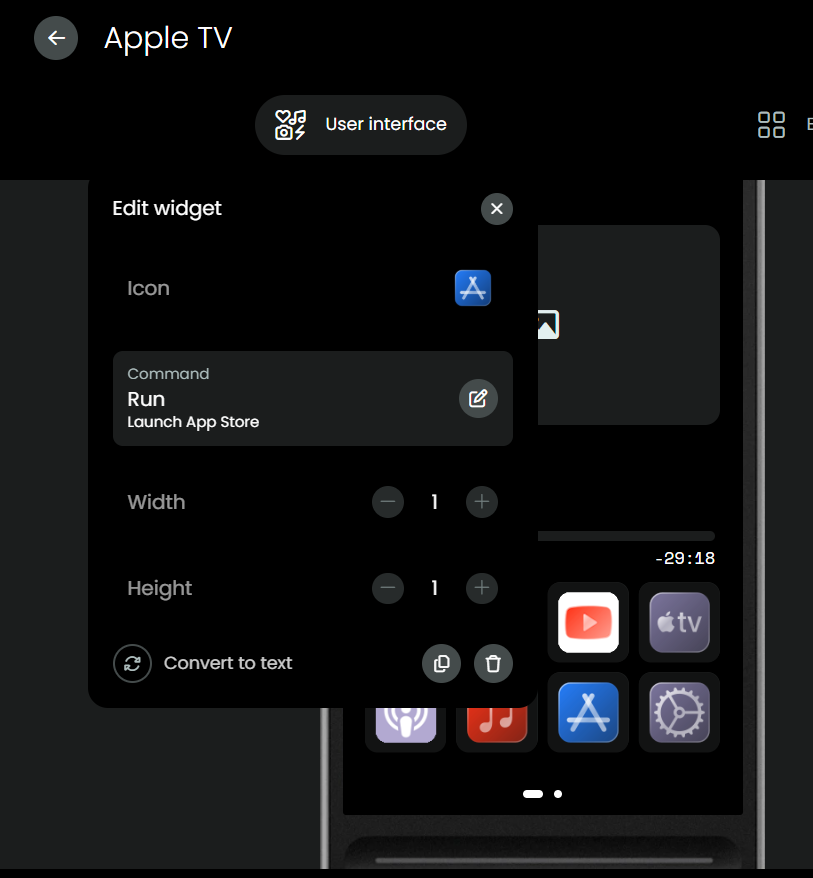
9. Go to user interface>Edit>Icon or Text button>Select macro>select run
Now you have an icon with an original dropdown selection. I call it “The Macro APP” XD…. Seriously though that was the only way I could get the app store to launch on apple tv integration. All other apps worked with manual entry for “Input Source” except for Prime Video on the Shield. That’s the only two that I tried to set up that needed this crazy workaround to launch them.
Thanks @dg5 for posting this list. It was very useful, espcially with capitalisation and spaces mattering. I was able to figure out most of the names but I was stuck with what to call AppleTV. I tried all the permutations I could think of but I didn’t think of just naming it ‘TV’
Here is a few more for UK users:
BBC iPlayer
Paramount+
Channel 4
Channel 5
ITVX
NOW
I like this. And to add to it…
I noticed that when you run a macro, there is an on-screen message on the remote with the name of the macro and the step that is currently running. I really liked that.
So, rather than directly opening Apple TV apps from my Watch TV activity, I created a macro for each of the apps. It opens the app and also sets the receiver to the correct sound mode that I prefer for that app.
So now if I hit the Netflix icon, I get “App: Netflix” on my screen and it also shows that it is switching the audio to Movie mode.
Just food for thought, in case anyone else likes the idea and wants to do something similar!
1 Like
I ran into issues trying to find the bundle ids when setting up my remote, as others have.
After some searching I found this great find on Git.
With a lot of help from AI, managed to create a portable exe to run it. It gives you all the info to ad to your remote, and you can also right click on the icons and save them to add to your remote.
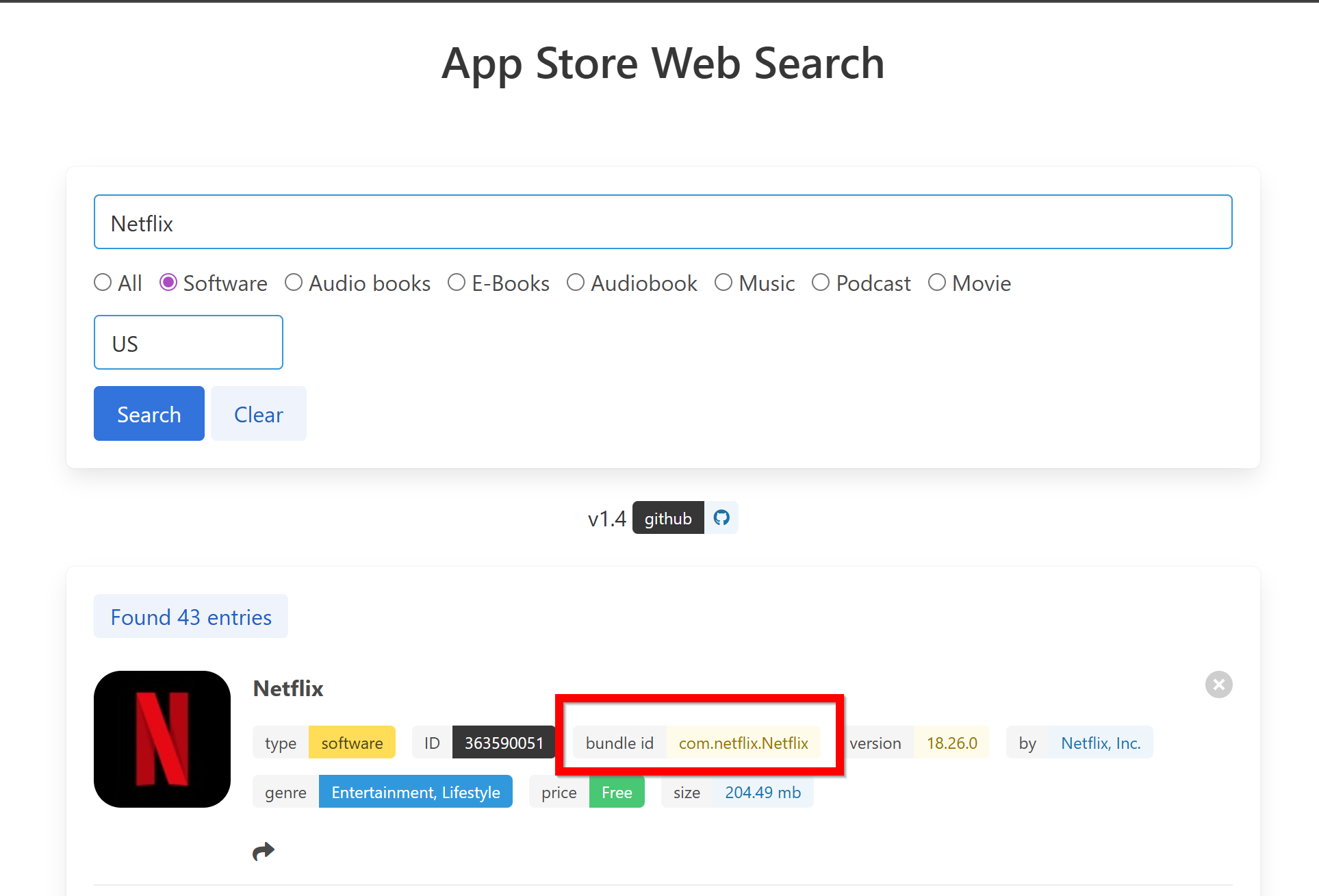
It runs a small exe in the background and opens your browser to allow a search.
After 20 seconds the exe will close, but the search should still work. If not simply close and relaunch. I hope it helps others finding the bundle IDs to add to your remotes.
I am no developer by any means, I’m just someone who likes to tinker 
Hello,
this is my first post here, although I’ve been actively reading along in the forum. Thanks to all the helpful information, I was abbble to set up my remote properly within a day.
However, now on day 4 I’m running into issues with the Apple TV integration. Since day 2, it has been acting up. Suddenly, the media information and the source list were no longer available, which I could also see in Home Assistant.I’ve already tried everything:
-
Reinstalled Home Assistant integration
-
Removed and re-added the remote integration
-
Reset the Apple TV
Unfortunately, nothing helped. The source list remains empty.
What’s interesting though: my older Apple TV 4K (2nd generation) still shows the source list correctly in Home Assistant. So at the moment, I have to start apps via their IDs, which works in many cases—but not for all (e.g. Prime Video).
I honestly have no idea what could be causing this !
I’m attaching a link to the Remote log where I try to execute the commands that don’t work. The only thing I can see there is that the source list is empty and a protocol error, but I don’t understand why.
Has anyone experienced a similar issue or has an idea how to fix this?
Thanks in advance!
Beta OS on Apple? It is a known problem. Apple changed something in the beta.
Ralf
’m not running any beta right now—neither on the Remote nor on the Apple TV in my Living Room (26.5). When it was working on day one, I was actually on the beta. After the reset, the Apple TV (2nd Gen)in another Room was still on 18.6, so it might be related to the OS version.
Do you think I should try putting the Remote on beta? Maybe it would help?
I am not Apple specialist. I had one but didn’t like it.
Ralf
I noticed missing media playback infos on the remote as well. But this is just a display/cache issue as they reappear after a remote /remote ui restart. There were similar reports for the sources/apps but they seem to work fine for me.
26.5 is the current tvOS beta version so the empty source list is a know issue cause by the beta