I love that in the web configuration, the buttons have a slightly different shading than the background, but on the remote display itself, it’s just a continuous black background with text. I feel it would be nice if we were able to specify the button background (without having to create a custom icon) or background page or specify a text colour other than white, which would nicely differentiate the commands without having to read each one.
4 Likes
Hello, I think that’s a very good idea!
1 Like
Agreed, for right now folks creating custom backgrounds, and they look AMAZING but it does take a lot of creativeness and work. wish this was a built in feature. at some point.
1 Like
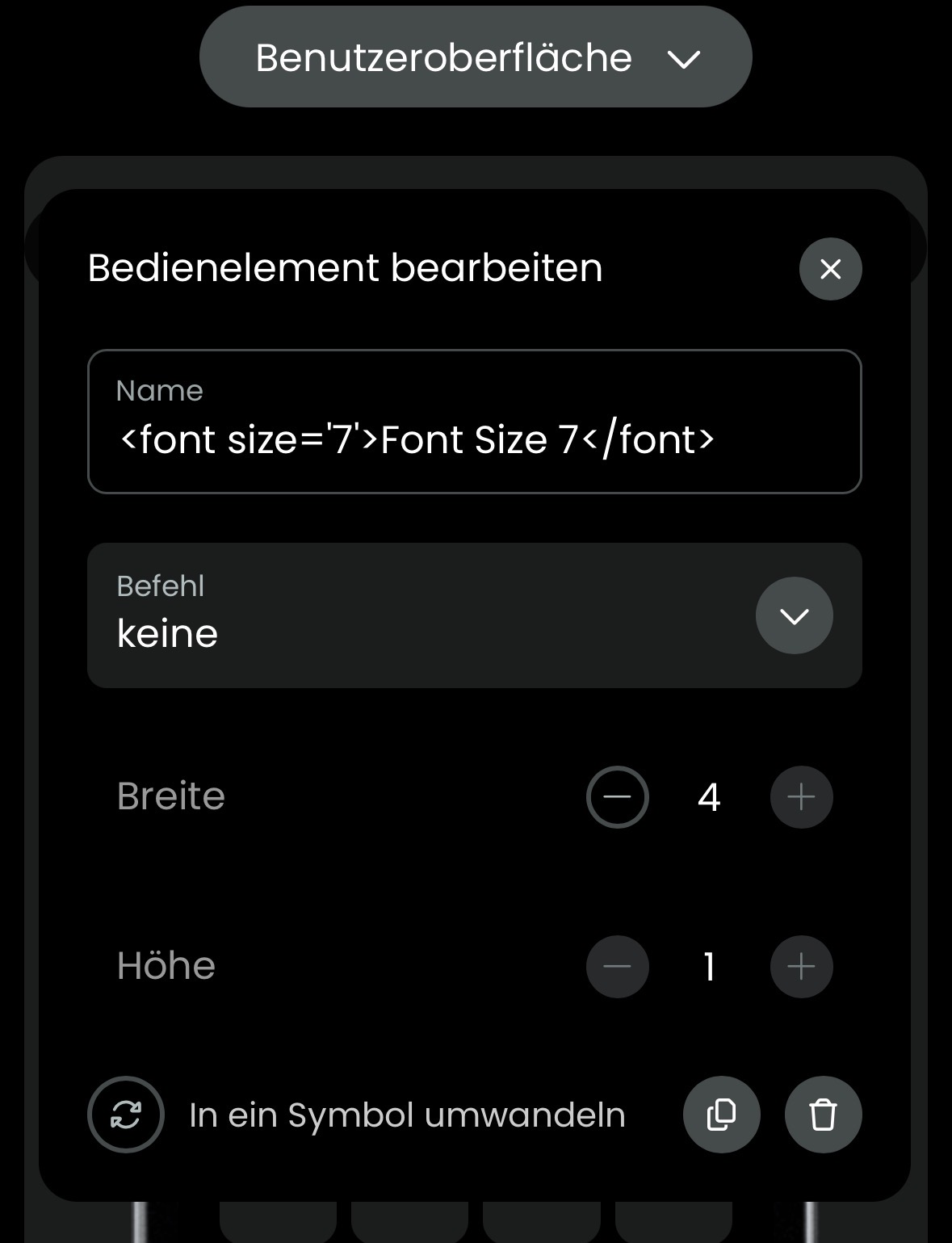
Changing the text color and size is possible trough a kind of hack by using html tags in your text buttons:
‹font size='7>Font Size 7‹font>

<font color= yellow'>Yellow Text</font>

‹font color= red'><h1>h1 Red</hl>‹/font>

‹font color='red'›<font>size=7></font>
Thanks @kennymc.c where would I access this html code to plug in these lines? I’d love to make the text smaller and a different color would be great too. Is there a list of available color tags?
Just paste it in the text field. You only see the effect on the remote itself. As these are html tags just refer to any html documentation. Instead of color names you can also use hex values.
@kennymc.c can you post a pic of how it looks like, please? having a hard time visualizing and understanding the implementation, but i am assuming its me not being able to get it lol.
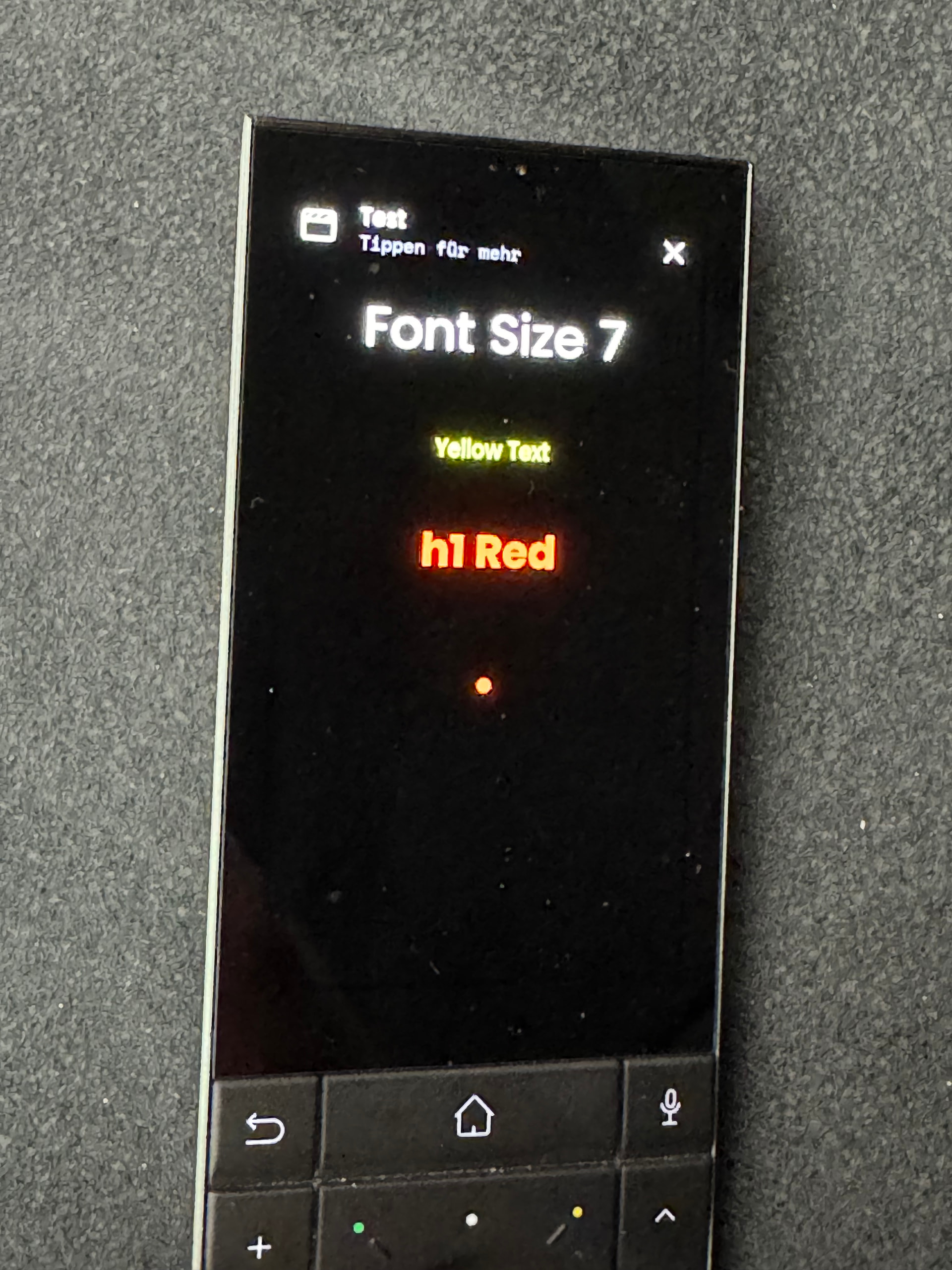
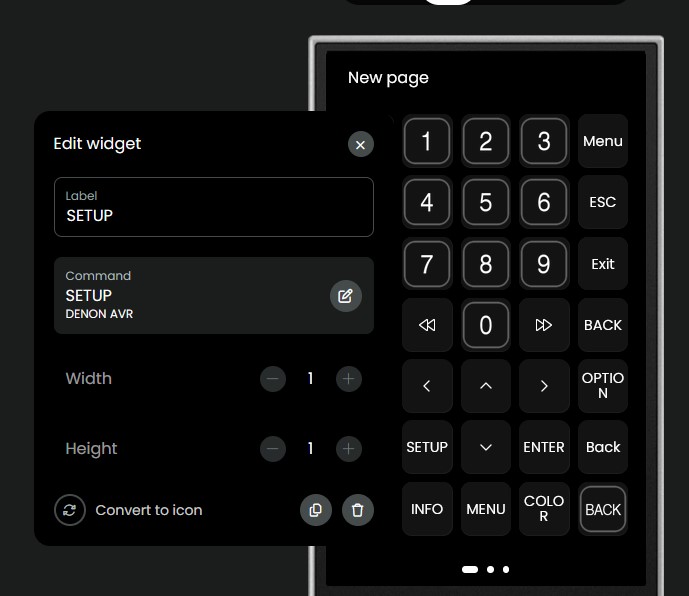
ok, thats crazy cool!!!
Yes, it’s Label
To come back to background-color:
I create all my buttons as transparent icons (size: 90 x 90)and add the wanted elements (text, grafic, etc.) on that.
Example:
I tried the Font size but it shows the “starting-tag” ( ) in front of the text which stays “normal”.
There is a missing quote after 7. It should be:
‹font size='7‘>Font Size 7‹font>
Ok but mustn’t there be a slash before the second font?
1 Like
Sorry, I used OCR to capture the from code from a screenshot so some smaller characters seem to have been ignored.
This is the real text copied form the configurator:
<font size='7'>Font Size 7</font>
<font color='yellow'>Yellow Text</font>
<font color='red'><h1>h1 Red</h1></font>
<font color='red'><font size='7'>•</font>
Thanks a lot. Works like a charm. 
Sorry where can I paste this code into in the Web Configurator?
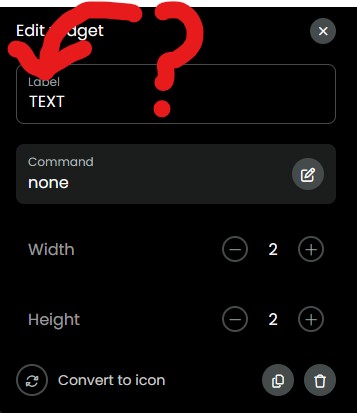
If I try to put it into “Label” field, I get a “Invalid request. Check your input” error
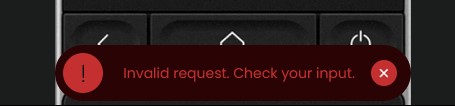
And for me too.