new version is up, added current time clock.  , thanks @fattykidd for the idea.
Nah, it was your idea I just helped you remember about it.
I think it was from someone asking about an always visible clock and you had the idea to include it in your weather widget.
I’m looking forward to checking it out when I get home later.
Thanks for this @M.a.S.e
lol. i can barely remember what i did this morning, let along an integration idea i had at some point. so , thanks for the reminder ??? eitherway, it came out cool !! and its working lol. i like it. thank you too.
Probably a dumb question but does this replace the default standby analog clock? Or does a weather “activity” need to be explicitly running?
This is a media player, not an activity. so as long as the media player is up. you can add the media player as a widget to an activity, or you can add it as an entity to one of the main pages. for an example for me i have it as a widget in any activity as the main page, its cool. and i also have it as a media player entity on a main page called “media players” and its the first one so it always visible, if that make sense.
Got it. Thanks for the explanation! But it looks like it won’t display when the remote is docked. It’s a shame because I would much rather have this than the analog clock that nobody cares about!
No Sir, sadly it cannot change the remote embedded OS behavior The remote CAN display a media widget, but you will need to manualy change it . eg: add the weather media widget to the remote via a main page, then dock the remote, it will display the clock ,click the screen to dismiss the clock and it will show the media widget, no one way to keep it on. remote limitation.. but its still cool to have especially in all acitvity pages. Thank you for saying my weather integration is cooler tho LOL.
1 Like
Driver not connected. Connection to host failed: Connection refused.
What am I doing wrong?
It works:)
1 Like
Glad you sorted it out
I am getting similar problems of: Driver not connected. Failed to connect to host: Connection refused (os error 111). The integration although visible in the web browser has not transferred to the Remote 3. I am not sure if this integration is the problem or whether the Remote 3 is connected (although it says it is, but let’s face it, the big problem with this device is connection stability!).
use browser to download the integration directly from github, not an integration issue. usually this error result to bad download corrupted file.
I’ve tried that (twice); the file uploads, then on set up, the first attempt is “Oops! & Timeout” followed by “Driver not connected. Failed to connect to host: Connection refused (os error 111)” on the second attempt.
not upload, try to re download the tar.gz. you have a corrupted download. seen this 5000 times , try downloading again the integration works and configure with no issue.
I’ll explain what I am doing, I download the latest tar.gz from github, I add a new integration, install custom, and then select the tar.gz from my downloads folder (Windows). I have done this several times. What should I be doing differently?
because i just downloaded the tar.gz and i cannot replicate your issue. check the core logs to see what it is complaining about.
edit: you asked what you should be doing different, not stating why..
use a different browser or incognito. check core logs too
I queried what I should be doing differently as you started your message with “not upload”, so I supected I was loading the integrations wrong. When I add the integration via the web configurator, should I be seeing it on the remote? I can see the five intergrations I previously added, but I can’t see the two I added today (including weather display). This is leading me to consider it’s a connection issue, although the remote is working for the original five integrations.
You most definitely need to see the uploaded integration. Can you walk me through the steps with screenshots? Because what you explained does not match expected behavior
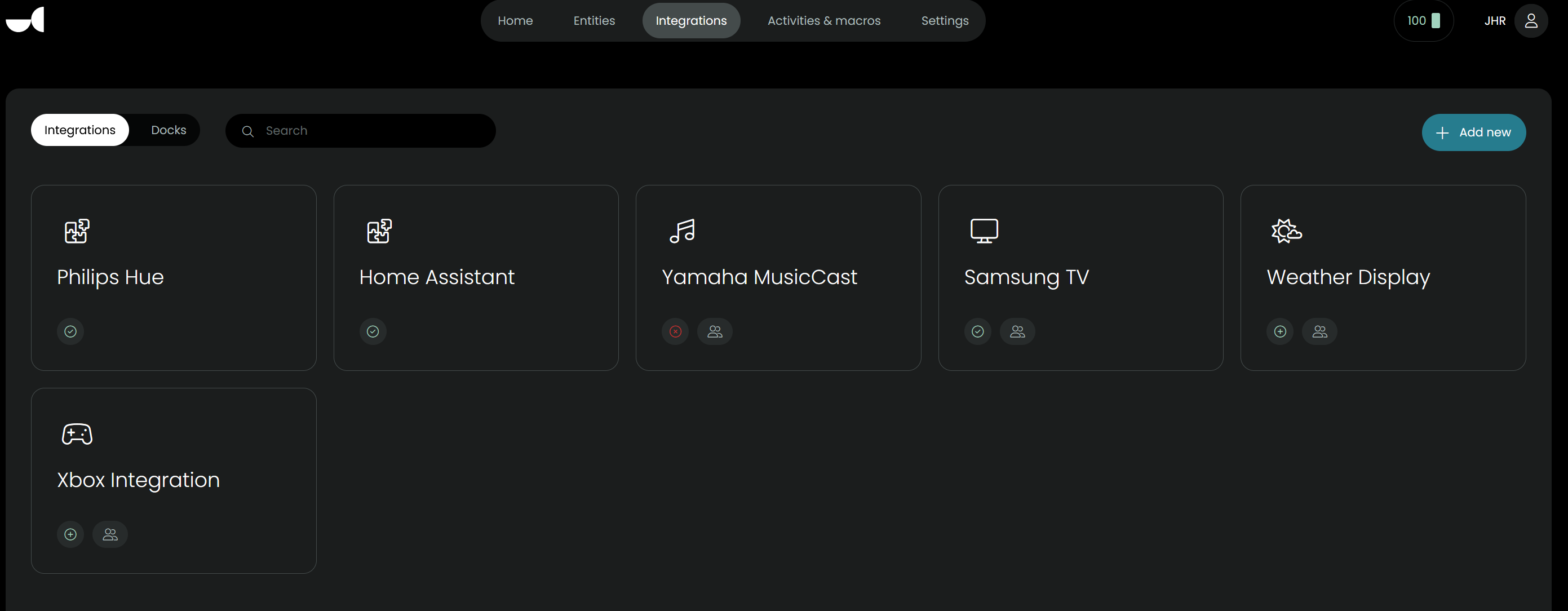
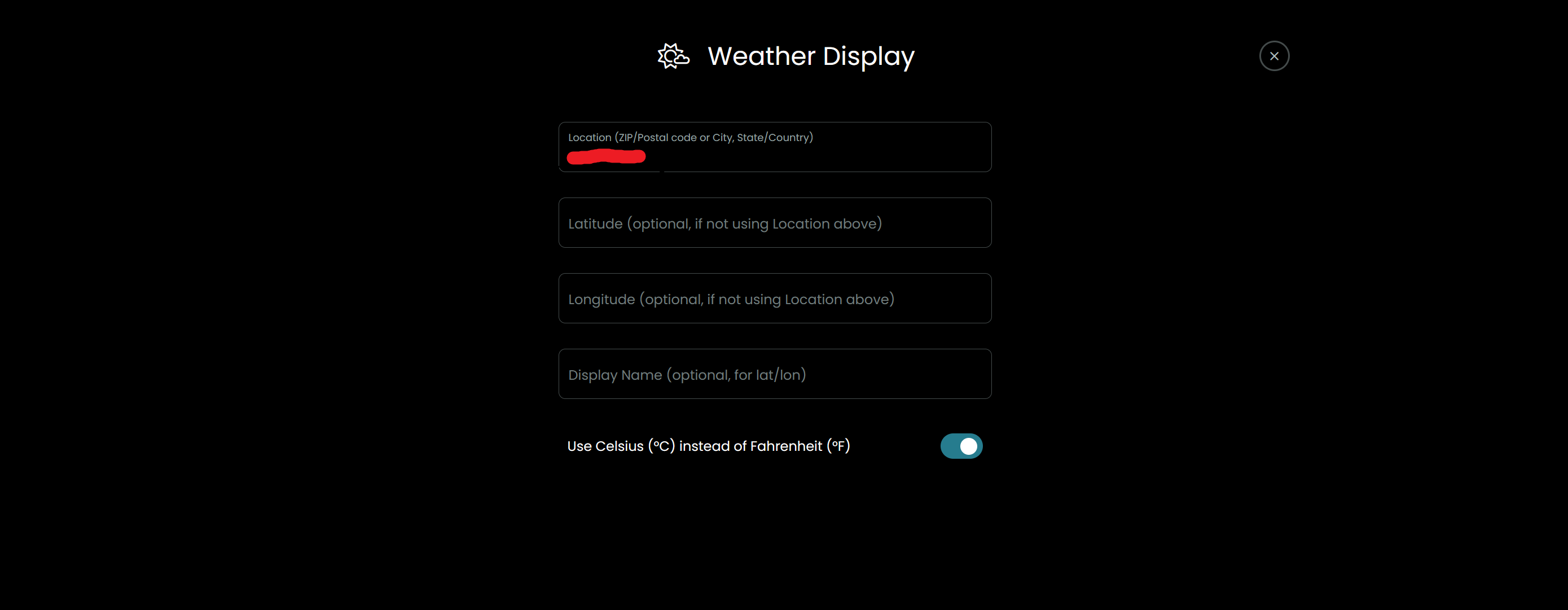
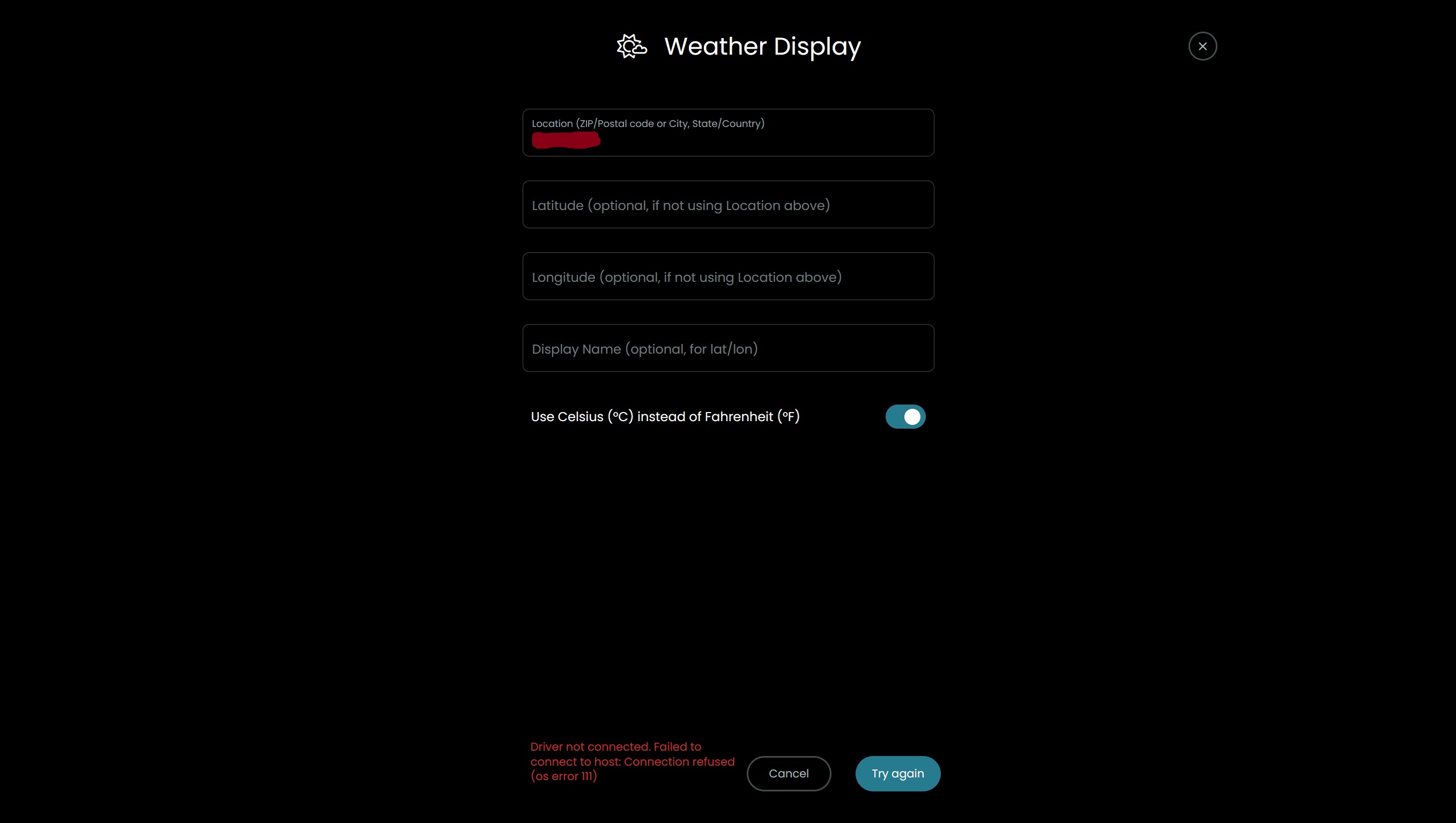
No problem, here are the screenshots from the web configurator:
Step 1: The integrations:
Step 2: Initial Data (UK Post Code Added):
Step 3: Failure Message:
I have the logs available, here are the first lines:
2026-03-13 08:51:24.465685 +00:00 core NOTICE Removed standby inhibitor: Integration setup: weather_display
2026-03-13 08:51:24.462678 +00:00 core ERROR [weather_display] Error connecting to driver ws://127.0.0.1:9004: ServiceUnavailable(“Failed to connect to host: Connection refused (os error 111)”)
2026-03-13 08:51:24.455479 +00:00 core WARN [weather_display] Driver not connected to start setup flow, starting driver. State: Some(Idle)
2026-03-13 08:51:18.743606 +00:00 core NOTICE uccore : PWD=/opt/uc/data ; USER=root ; COMMAND=/usr/bin/systemctl start custom-intg@weather_display
2026-03-13 08:51:18.678049 +00:00 core NOTICE Execute system command: StartCustomIntegration(“weather_display”, Some(“custom-intg@weather_display”))
2026-03-13 08:51:18.672768 +00:00 core NOTICE Added standby inhibitor: Integration setup: weather_display
This is 99% of the time a bad download, use a different browser, re download the tar.gz and upload the new tar.gz you just downloaded and try again.