I was having issues detecting my docking station using the remote 3 or web configurator. I found out quickly that if the docking station is not connected to a Wi-Fi connection or hooked directly to a router, it will not charge the remote 3.
Here are some obstacles I had to hurdle over:
-
Use your laptop and connect to the 2.4 GHz Wi-Fi connection - Unfolded Circle docking stations only use this connection and NOT the 5 GHz connection. For some reason connecting your laptop to this specific connection, does make a difference according to the Internet.
-
Login and connect to web configurator as well as your router settings, specifically “Attached Devices” and their IP addresses
-
Connect the docking station via USB-C and directly to the router using a CAT network cable
-
In web configurator, go to “Entities” tab at the top then on the upper right click on “Add New” - choose Dock
-
In your router settings, under attached devices, find out your IP address of the docking station attached directly to your router - the name should start with UCD3* - make sure you have the right one if you possess two docking stations.
-
After choosing the dock option in web configurator choose the “Manual Setup“ option below. In the next screen, fill out the following according to the screenshot below
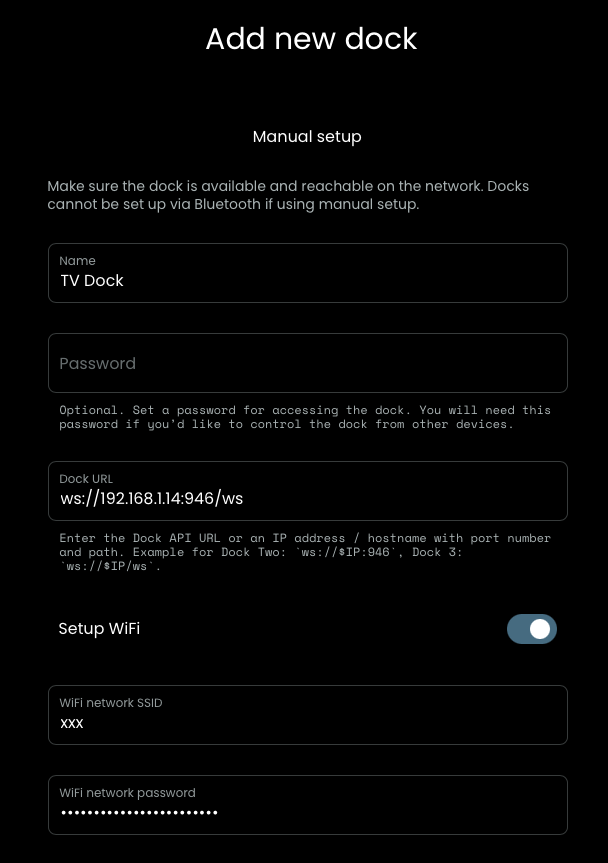
- Provide a name for your new dock, choose a password if you wish; I don’t recommend - Fill in your Dock URL: Make sure you choose the 2.4GHz SSID name followed by the IP address (mine is: ws://192.168.1.14:946/ws – as an example) and your router password – press NEXT
- Note: if you have two docking stations, they both need to point to the same 2.4GHz wireless connection.
Unhook the docking station from your router and place it anywhere else you want in your home with a USB-C connection! - all smiles…..
Hope that helps!
Cheers